 ScanToBIM-CAD
E57 vs LAS vs PLY: CloudCompare Supported Formats & Comparison
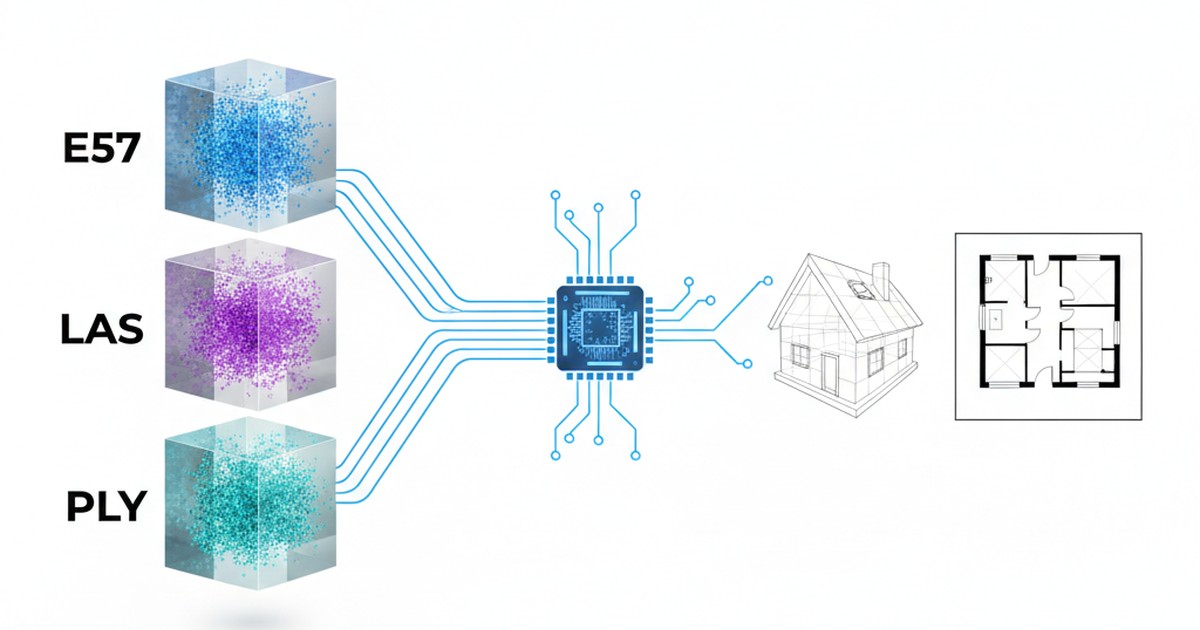
📋 Quick Summary:
- ✅ E57: Industry standard from terrestrial scanners (Faro, Leica, Trimble), includes color and intensity
- ✅ LAS: LiDAR standard format, widely supported, good for large datasets
- ✅ PLY: Simple format from photogrammetry/Matterport, easy to work with
- ✅ Best for floor plans: E57 or PLY (better color data), but all three work with ScanToBIM-CAD
You've just completed a laser scan of a building interior. Your scanner has saved the data, but now you're staring at a file with an unfamiliar extension: .e57, .las, or .ply. Which format is this? Does it matter? And can you convert it to something else?
If you're working with point clouds for scan-to-BIM or CAD workflows, understanding these three common formats is essential. Each format has its strengths, weaknesses, and specific use cases. In this guide, we'll break down E57, LAS, and PLY formats so you can choose the right one for your project—or convert between them when needed.
Understanding Point Cloud Formats: The Basics
Before diving into the specifics, let's understand what a point cloud format actually is. A point cloud is a collection of 3D points (X, Y, Z coordinates) that represent the surface of objects. Each point can also include additional data like:
- Color (RGB): Red, green, and blue values for each point
- Intensity: Reflectance value from the laser scanner
- Normal vectors: Surface orientation information
- Classification: Point type (ground, building, vegetation, etc.)
Different formats store this data differently, which affects file size, compatibility, and what software can read them. Let's examine each format in detail.
E57 Format: The Industry Standard for Terrestrial Scanners
What is E57?
E57 (ASTM E2807 standard) is the most common format for terrestrial laser scanners. It's an open, vendor-neutral format designed specifically for 3D imaging data exchange. Think of it as the "PDF of point clouds"—widely accepted and standardized.
Key Features:
- ✅ Stores multiple scans in a single file
- ✅ Includes color (RGB) and intensity data
- ✅ Preserves scan metadata (scanner model, calibration, timestamps)
- ✅ Supports compression for smaller file sizes
- ✅ Industry standard (ASTM E2807)
Which Scanners Export E57?
E57 is the native or primary export format for most professional terrestrial laser scanners:
🏢 Faro Scanners
- Faro Focus S
- Faro Focus Premium
- Faro X330
- All Faro scanners export E57 natively
📐 Leica Scanners
- Leica BLK360
- Leica RTC360
- Leica ScanStation
- Export via Leica Cyclone software
🔧 Trimble Scanners
- Trimble TX8
- Trimble X7
- Trimble SX10
- Export via Trimble RealWorks
📷 Other Scanners
- Riegl scanners
- Z+F scanners
- Most professional terrestrial scanners
E57 Advantages and Disadvantages
Advantages:
- Industry standard format with wide software support
- Preserves all scan metadata and calibration data
- Can store multiple scans in one file
- Includes color and intensity information
- Good compression options
Disadvantages:
- Not directly supported by AutoCAD or Revit (requires ReCap conversion)
- Can be slower to load in some software
- File sizes can be large for high-resolution scans
LAS Format: The LiDAR Standard
What is LAS?
LAS (LASer format) is the standard format for airborne and mobile LiDAR data. Developed by the American Society for Photogrammetry and Remote Sensing (ASPRS), it's widely used in surveying, mapping, and GIS applications.
Key Features:
- ✅ Designed for large-scale LiDAR datasets
- ✅ Includes classification codes (ground, building, vegetation)
- ✅ Supports intensity and RGB color
- ✅ Widely used in GIS and surveying
- ✅ LAZ variant provides compression (up to 10x smaller)
Which Scanners Export LAS?
LAS is primarily used for:
- Airborne LiDAR: Drones, aircraft-mounted scanners
- Mobile Mapping: Vehicle-mounted scanners (StreetMapper, Riegl VMX)
- Some Terrestrial Scanners: Can export to LAS via conversion software
- Photogrammetry Software: Some tools can export to LAS
Note: Most terrestrial scanners (Faro, Leica, Trimble) don't export LAS directly. You'll need to convert from E57 to LAS if you need this format.
LAS Advantages and Disadvantages
Advantages:
- Industry standard for LiDAR and surveying
- Excellent compression with LAZ format
- Includes classification data (useful for filtering)
- Widely supported in GIS software
- Good for large datasets
Disadvantages:
- Not directly supported by AutoCAD or Revit
- Less common for interior scans
- May not preserve all scanner metadata
- Color data is optional (not always included)
PLY Format: Simple and Versatile
What is PLY?
PLY (Polygon File Format) is a simple, flexible format originally developed at Stanford University. It's commonly used for 3D models, photogrammetry, and 3D scanning applications. PLY files can be ASCII (text-based) or binary.
Key Features:
- ✅ Simple format, easy to read and write
- ✅ Supports color (RGB) and normal vectors
- ✅ Can include mesh data (polygons)
- ✅ Widely supported in 3D software
- ✅ Good for photogrammetry workflows
Which Scanners Export PLY?
PLY is commonly exported by:
- Matterport Scanners: Matterport Pro2 and Pro3 cameras export PLY
- Photogrammetry Software: RealityCapture, Agisoft Metashape, Meshroom
- 3D Scanning Apps: Some mobile scanning apps export PLY
- Conversion Tools: Many point cloud converters can export to PLY
Note: Professional terrestrial scanners (Faro, Leica, Trimble) typically don't export PLY directly. You'll need to convert from E57 to PLY if needed.
PLY Advantages and Disadvantages
Advantages:
- Simple format, easy to work with
- Good software support (Blender, CloudCompare, MeshLab)
- Includes color data
- Can store mesh data alongside points
- ASCII version is human-readable
Disadvantages:
- Not directly supported by AutoCAD or Revit
- ASCII PLY files can be very large
- Less standardized than E57 or LAS
- May not preserve scanner metadata
Format Comparison: Which is Best for Floor Plan Extraction?
For scan-to-BIM and floor plan extraction workflows, here's how the formats compare:
| Feature | E57 | LAS | PLY |
|---|---|---|---|
| Color Data | ✅ Yes | ⚠️ Optional | ✅ Yes |
| Intensity Data | ✅ Yes | ✅ Yes | ❌ No |
| Metadata Preservation | ✅ Excellent | ⚠️ Limited | ❌ Minimal |
| File Size | Medium | Small (LAZ) | Large (ASCII) |
| AutoCAD/Revit Support | ❌ Needs ReCap (or IFC workflow) | ❌ Needs ReCap (or IFC workflow) | ❌ Needs ReCap (or IFC workflow) |
| Best For | Terrestrial scans | LiDAR/surveying | Photogrammetry |
Recommendation for Floor Plan Extraction
For interior scans and floor plan extraction, E57 or PLY are generally better choices than LAS because they reliably include color data, which helps with:
- Visual identification of walls, doors, and windows
- Better AI detection in automated conversion tools
- Easier manual review and quality checking
However, the format doesn't matter if you're using ScanToBIM-CAD—we support all three formats (E57, LAS, and PLY) and can convert any of them directly to DXF/DWG floor plans and BIM models without requiring ReCap conversion.
💡 Pro Tip: If you have a choice, use E57 for terrestrial scans (preserves all metadata) or PLY for photogrammetry workflows. But don't worry if you only have LAS—all formats work with modern conversion tools.
How to Convert Between Point Cloud Formats
Sometimes you need to convert between formats—maybe your software only accepts one format, or you need to share data with someone using different tools. Here's how to convert between E57, LAS, and PLY formats using CloudCompare, a free, open-source point cloud processing tool.
Step 1: Download and Install CloudCompare
CloudCompare is available for Windows, macOS, and Linux. Download it from the official website (it's free and open-source).
Step 2: Open Your Point Cloud File
- Launch CloudCompare
- Go to File → Open (or drag and drop your file)
- Select your point cloud file (E57, LAS, PLY, or many other formats)
- CloudCompare will load the file and display it in the 3D viewer
Supported Input Formats: CloudCompare can read E57, LAS, LAZ, PLY, PCD, XYZ, and many other point cloud formats. This makes it an excellent conversion tool.
Step 3: Export to Your Desired Format
- With your point cloud loaded, select it in the DB Tree (left panel)
- Go to File → Save (or right-click the cloud → Save)
- Choose your desired output format from the dropdown:
- E57: Select "E57 Cloud" format
- LAS: Select "LAS Cloud" format
- PLY: Select "PLY Cloud" format
- Choose a location and filename
- Click Save
Step 4: Configure Export Options (Optional)
Depending on the format, CloudCompare may show export options:
- For LAS: You can choose which attributes to export (coordinates, color, intensity, classification)
- For PLY: Choose between ASCII or binary format (binary is smaller and faster)
- For E57: Options for compression and metadata preservation
Common Conversion Scenarios
E57 to PLY (for photogrammetry workflows)
If you have a Faro or Leica scan in E57 format but need PLY for a photogrammetry pipeline:
- Open the E57 file in CloudCompare
- File → Save → Select "PLY Cloud"
- Choose binary PLY for smaller file size
- Save
LAS to E57 (for terrestrial scanner workflows)
If you have LiDAR data in LAS format but need E57 for a terrestrial scanner workflow:
- Open the LAS file in CloudCompare
- File → Save → Select "E57 Cloud"
- Note: Some metadata may be lost in conversion
- Save
PLY to LAS (for GIS/surveying workflows)
If you have a Matterport scan in PLY format but need LAS for GIS software:
- Open the PLY file in CloudCompare
- File → Save → Select "LAS Cloud"
- Configure export options (include color if available)
- Save
⚠️ Important Notes:
- Converting between formats may result in some data loss (especially metadata)
- File sizes may change (LAS/LAZ is often smaller, PLY ASCII is larger)
- Color data should be preserved in most conversions
- Always verify the converted file before using it in production
Alternative Conversion Tools
While CloudCompare is excellent, here are other tools you can use for format conversion:
- PDAL (Point Data Abstraction Library): Command-line tool for advanced conversions
- Autodesk ReCap Pro: Can convert E57/LAS to RCP format (for AutoCAD/Revit)
- FME (Feature Manipulation Engine): Commercial tool with extensive format support
- Online Converters: Various web-based tools (use with caution for large files)
Which Format Should You Use?
The best format depends on your workflow:
🏢 Use E57 If:
- You're using terrestrial scanners
- You need to preserve metadata
- You're working with multiple scans
- You want industry-standard format
📐 Use LAS If:
- You're working with LiDAR data
- You need small file sizes (LAZ)
- You're using GIS software
- You need classification data
📷 Use PLY If:
- You're using Matterport or photogrammetry
- You need simple, versatile format
- You're working with 3D modeling software
- You want easy-to-read format
Conclusion: Format Doesn't Matter with Modern Tools
While understanding the differences between E57, LAS, and PLY is important, the good news is that modern conversion tools support all three formats. You don't need to worry about format compatibility if you're using the right software.
ScanToBIM-CAD supports all three formats—you can upload E57, LAS, or PLY files directly and convert them to DXF/DWG floor plans or to a Revit model (point cloud to Revit) without any format conversion. No ReCap, no CloudCompare, no manual conversion needed. Just upload your file and get your floor plan or BIM model in minutes.
Ready to convert your point cloud to a floor plan? Try ScanToBIM-CAD free—upload any format (E57, LAS, or PLY) and see your results in minutes. No credit card required.
Have questions about point cloud formats or conversion? Check out our guide on how to convert point clouds to floor plans and our guide on point cloud to Revit model for more detailed workflows.
Ready to Convert Your Point Cloud?
Try ScanToBIM-CAD free and convert your first point cloud to a floor plan in minutes. No credit card required.
Start Free TrialRelated Posts

Point Cloud to Revit Model: Automated Conversion, Delivered as IFC/Revit
Convert point cloud to Revit model with automated detection—delivered as IFC or Revit. No manual tracing. AI detects walls, doors, windows. Complete guide for AEC workflows.
![How to Convert Point Cloud to Floor Plan [2026 Guide]](/_next/image?url=%2Fblog%2Fpoint-cloud-to-floor-plan%2Ffeatured.jpg&w=3840&q=75)
How to Convert Point Cloud to Floor Plan [2026 Guide]
Stop wasting 8+ hours manually tracing point clouds. Learn how to convert point clouds to floor plans in minutes using AI-powered automation. Compare manual vs automated methods and see real time and cost savings.

As-Built Floor Plans from Laser Scans: Complete Workflow
Create accurate as-built floor plans from laser scans in hours instead of weeks. Learn the complete workflow from field scanning to final CAD drawings, compare traditional vs modern AI-assisted methods, and see real cost savings.