 ScanToBIM-CAD
Faro Scanner to Floor Plan: Automated Workflow
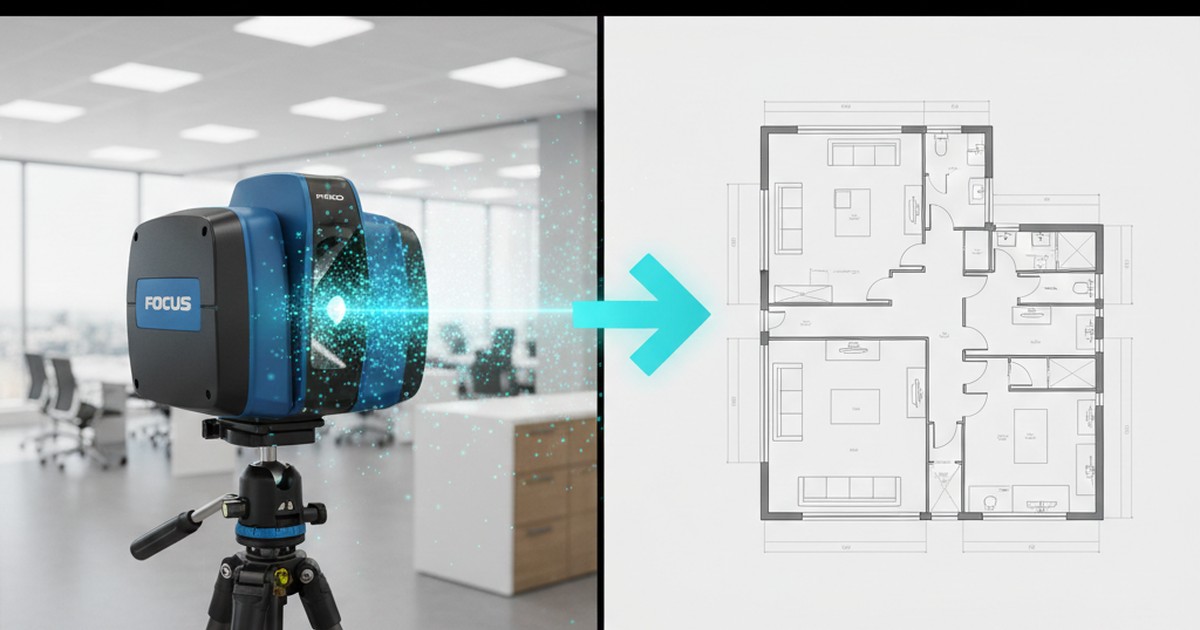
📋 Quick Summary:
- ✅ Faro scanners: Industry-leading tripod scanners for high-precision as-built documentation
- ✅ Export formats: FLS (native), E57, LAS, RCP - all convertible to floor plans
- ✅ Workflow: Scan → Register in Faro Scene → Export → Convert to CAD (2-4 hours total)
- ✅ Best for: High-accuracy as-built floor plans, survey-grade documentation, large commercial spaces
- ✅ Time savings: Automated conversion (3 minutes) vs manual tracing (8-20 hours)
Faro scanners are among the most trusted tools in the laser scanning industry. Used by surveyors, architects, and construction professionals worldwide, Faro's tripod-mounted scanners deliver survey-grade accuracy (±1-2mm) and are the go-to choice for high-precision as-built documentation. But once you've captured that high-quality point cloud, how do you efficiently convert it into a usable floor plan?
In this comprehensive guide, we'll walk through the complete workflow from Faro scanner to floor plan—covering everything from exporting point clouds in Faro Scene to converting them to DXF/DWG CAD files using automated tools.
What is a Faro Scanner? Overview of the Product Line
Faro Technologies is a leading manufacturer of 3D measurement and imaging solutions. Their laser scanning products are widely used in architecture, engineering, construction, and surveying for creating accurate as-built documentation.
Faro Focus Series (Tripod Scanners)
The Faro Focus series is Faro's flagship line of tripod-mounted laser scanners, known for their high accuracy and reliability:
🎯 Faro Focus S
- Entry-level professional scanner
- Range: Up to 70m
- Accuracy: ±1mm
- Best for: Small-to-medium projects
🎯 Faro Focus Premium
- High-performance scanner
- Range: Up to 350m
- Accuracy: ±1mm
- Best for: Large commercial spaces
Faro Focus scanners capture millions of 3D points per scan position, creating highly detailed point clouds with color (RGB) data when using the built-in camera. They're designed for stationary scanning—you set up the tripod, start the scan, and move to the next position.

Faro Freestyle (Handheld Scanner)
The Faro Freestyle is Faro's handheld scanning solution, designed for faster, more mobile scanning workflows:
- Type: Handheld SLAM scanner
- Range: Up to 30m
- Accuracy: ±2-5cm
- Best for: Interior spaces, quick surveys, facility management
- Workflow: Walk through space while scanning continuously

💡 Freestyle vs Focus: The Freestyle is ideal for speed and portability, while Focus scanners excel at precision and large-scale projects. Both integrate with Faro Scene software and export to the same formats.
Faro Software Ecosystem
Faro scanners work with Faro Scene, the company's comprehensive point cloud processing software. Faro Scene handles:
- Scan registration (aligning multiple scan positions)
- Point cloud visualization and editing
- Export to various formats (E57, LAS, RCP, etc.)
- Measurement and annotation tools
- Integration with CAD/BIM software
Typical Export Formats from Faro Scanners
Faro Scene can export point clouds in several industry-standard formats. Here's what you need to know about each:
1. FLS Format (Faro Native)
FLS is Faro's proprietary format, used for storing raw scan data:
- ✅ Preserves all scan metadata (position, orientation, settings)
- ✅ Includes color (RGB) data from built-in camera
- ✅ Compressed format (smaller file sizes)
- ❌ Not directly compatible with most CAD software
- ❌ Requires conversion to E57/LAS for CAD workflows
⚠️ FLS Limitation: Most CAD conversion tools (including ScanToBIM-CAD) don't accept FLS files directly. You'll need to export from Faro Scene to E57, LAS, or PLY format first.
2. E57 Format (Recommended)
E57 is the industry standard for terrestrial laser scanning data:
- ✅ Industry standard format
- ✅ Preserves color (RGB) and intensity data
- ✅ Includes metadata (scan positions, timestamps)
- ✅ Compatible with all major CAD and point cloud software
- ✅ Works directly with ScanToBIM-CAD
Best choice for floor plan conversion because it preserves all necessary data and is widely supported.
3. LAS Format
LAS (LiDAR Aerial Survey) is another standard format:
- ✅ Widely used in surveying and GIS
- ✅ Good compression (LAZ variant)
- ✅ Preserves intensity data
- ✅ Compatible with ScanToBIM-CAD
- ⚠️ May not preserve color (RGB) data in all cases
4. RCP/RCS Format (Autodesk ReCap)
RCP/RCS formats are used by Autodesk ReCap software:
- ✅ Native format for Autodesk workflows
- ✅ Can be imported directly into AutoCAD and Revit
- ❌ Requires Autodesk ReCap Pro license ($405/year or $50/month)
- ❌ Not compatible with ScanToBIM-CAD (must convert to E57/LAS first)
5. PLY Format
PLY is a simple, widely-supported format:
- ✅ Simple format, easy to work with
- ✅ Can include color data
- ✅ Compatible with ScanToBIM-CAD
- ⚠️ May not preserve all metadata
✅ Recommended Export Format: For floor plan conversion, export from Faro Scene to E57 format. It preserves all necessary data (color, metadata) and works directly with ScanToBIM-CAD and other conversion tools.
Why Use Faro for As-Built Floor Plans?
Faro scanners are an excellent choice for creating as-built floor plans. Here's why:
🎯 High Accuracy
±1mm accuracy ensures precise floor plans suitable for construction documentation and legal surveys
📐 Survey-Grade Precision
Meets professional surveying standards for as-built documentation and property records
🏢 Large-Scale Projects
350m range (Focus Premium) allows scanning of large commercial and industrial spaces
🎨 Color Data
Built-in camera captures RGB color, improving AI detection accuracy for walls, doors, and windows
Common Use Cases
- As-built documentation: Creating accurate records of existing buildings for renovation or legal purposes
- Construction verification: Comparing built conditions to design drawings
- Facility management: Maintaining up-to-date floor plans for large commercial buildings
- Historic preservation: Documenting historic structures with high precision
- Surveying: Creating survey-grade floor plans for property records
Step-by-Step: Exporting Point Clouds from Faro Scene
Here's the complete workflow for exporting your Faro scan data for floor plan conversion:
Step 1: Register Scans in Faro Scene
Before exporting, ensure all scan positions are properly registered (aligned):
- Open Faro Scene and load your scan project
- Review scan positions in the 3D view
- Run automatic registration (if not already done)
- Manually adjust any misaligned scans if needed
- Verify registration quality (check for gaps, overlaps, alignment errors)
💡 Registration Tips:
- Good registration is critical for accurate floor plans
- Ensure sufficient overlap between scan positions (30-50% recommended)
- Check for registration errors in the quality report
- Fix any misalignments before exporting
Step 2: Clean and Prepare Point Cloud
Before exporting, clean up the point cloud:
- Remove unwanted objects: Delete furniture, temporary objects, or clutter if not needed for floor plan
- Filter noise: Remove outliers and low-quality points
- Clip to relevant area: Export only the floor/level you need (for multi-story buildings)
- Verify point density: Ensure adequate coverage for accurate wall detection
Step 3: Export to E57 Format
Export your registered and cleaned point cloud:
- In Faro Scene, select the scans or scan regions you want to export
- Go to File → Export → Point Cloud
- Choose E57 as the export format
- Configure export settings:
- Point spacing: 1-5mm is typically sufficient for floor plans
- Include color: Yes (RGB data improves AI detection)
- Coordinate system: Use project coordinate system or local coordinates
- Click Export and wait for processing (time depends on point cloud size)
- Save the E57 file to your computer
⏱️ Export Time: For a typical 500m² scan with 1mm spacing, export takes 5-15 minutes depending on your computer's performance.
Step 4: Convert to Floor Plan with ScanToBIM-CAD
Now convert your exported E57 file to a floor plan:
- Go to ScanToBIM-CAD and sign in (or create a free account)
- Click "Upload New Scan"
- Drag and drop your E57 file (or click to browse)
- Wait for upload to complete
- AI processing automatically detects walls, doors, and windows (typically 1-3 minutes)
- Review the 3D viewer to verify detection quality
- Download DXF (2D floor plan) and IFC (3D BIM model, optional)
✅ Result: You now have a professional DXF file with:
- ✅ Walls on separate layers
- ✅ Doors and windows detected and positioned
- ✅ Accurate dimensions (preserves Faro's ±1mm accuracy)
- ✅ Ready to import into AutoCAD, Revit, or any CAD software
Alternative: Manual Tracing Workflow
If you prefer manual tracing (or need very specific customization), here's the traditional workflow:
- Export from Faro Scene to RCP format (requires Autodesk ReCap Pro)
- Import RCP into AutoCAD or Revit using ReCap plugin
- Manually trace walls, doors, and windows in CAD software
- Add dimensions, room labels, and annotations
- Export final floor plan to DXF/DWG
⚠️ Time Investment: Manual tracing takes 8-20 hours for a typical 500m² project, compared to 3 minutes for automated conversion. The manual approach also requires AutoCAD/Revit licenses ($2,000+/year) and ReCap Pro ($405/year).
Comparison: Manual Tracing vs Automated Conversion
Let's compare the two approaches to getting floor plans from Faro scans:
| Factor | Manual Tracing (AutoCAD/Revit) | Automated (ScanToBIM-CAD) |
|---|---|---|
| Time Required | 8-20 hours | ✅ 2-4 minutes |
| Cost | $400-$1,000 (labor) + software licenses | ✅ $29/month (multiple conversions) |
| Accuracy | ±1-2mm (manual precision) | ✅ ±2-5mm (preserves point cloud accuracy) |
| Consistency | ❌ Varies by operator | ✅ Consistent results |
| Door/Window Detection | Manual (time-consuming) | ✅ Automatic AI detection |
| Skill Required | High (CAD expertise needed) | ✅ Low (upload and download) |
| Software Required | Faro Scene + ReCap Pro + AutoCAD/Revit ($2,405+/year) | ✅ Web browser only |
| 3D BIM Model | ❌ Not included (must create separately) | ✅ IFC file included |
| Scalability | ❌ Limited (one at a time) | ✅ Unlimited conversions |
💰 Cost Comparison Example:
- Manual tracing: 12 hours × $50/hour = $600 per project
- Software licenses: ReCap Pro ($405/year) + AutoCAD ($2,000/year) = $2,405/year
- Automated (ScanToBIM-CAD): 3 minutes + $29/month = $29 per project (multiple conversions/month)
- Savings: $571 per project (95% cost reduction) + no software license costs
Common Roadblocks and Solutions
Here are common issues you might encounter when converting Faro scans to floor plans, and how to solve them:
Roadblock 1: Registration Errors
Symptoms: Point cloud has gaps, misaligned sections, or duplicate geometry
Solutions:
- Improve scan overlap: Ensure 30-50% overlap between scan positions
- Use targets: Place Faro targets or checkerboard targets for better registration
- Check scan quality: Verify each scan position captured sufficient data
- Manual registration: Use Faro Scene's manual registration tools for difficult areas
- Re-scan if needed: For severe registration issues, re-scan problematic areas
Roadblock 2: Accuracy Issues
Symptoms: Floor plan dimensions don't match known measurements or expected values
Solutions:
- Verify scanner calibration: Ensure Faro scanner is properly calibrated
- Check coordinate system: Verify correct coordinate system in Faro Scene
- Compare against known measurements: Measure door widths, room dimensions to verify accuracy
- Review registration quality: Poor registration can cause accuracy issues
- Check for scale errors: Verify export settings preserve correct scale
Roadblock 3: Large File Sizes
Symptoms: E57 files are very large (several GB), slow to upload or process
Solutions:
- Reduce point spacing: Export with 2-5mm spacing instead of 1mm (still sufficient for floor plans)
- Split by floor: Export each floor/level as a separate file
- Clip to relevant area: Export only the area needed for floor plan (remove exterior, unnecessary spaces)
- Use compressed formats: E57 is already compressed, but verify export settings
- Check file size limits: ScanToBIM-CAD supports files up to 2GB; for larger files, split or reduce density
Roadblock 4: Missing or Incorrect Wall Detection
Symptoms: AI-generated floor plan is missing walls or has incorrect wall positions
Solutions:
- Check point cloud density: Ensure walls have adequate point coverage (1-5mm spacing recommended)
- Verify scan coverage: Make sure all walls were captured during scanning
- Include color data: RGB color improves AI detection accuracy—ensure E57 export includes color
- Review in 3D viewer: Check ScanToBIM-CAD's 3D preview before downloading
- Manual refinement: Add missing walls manually in CAD (still faster than full manual tracing)
Roadblock 5: FLS Format Not Supported
Symptoms: Conversion tool doesn't accept FLS files
Solution: Export from Faro Scene to E57, LAS, or PLY format first. Most conversion tools (including ScanToBIM-CAD) don't accept FLS directly because it's Faro's proprietary format.
Best Practices for Clean Exports and Reliable Plans
Follow these best practices to get the best results when converting Faro scans to floor plans:
1. Scanning Best Practices
- ✅ Plan scan positions: Ensure 30-50% overlap between positions
- ✅ Use targets: Place Faro targets or checkerboard targets for better registration
- ✅ Capture all areas: Don't skip rooms, corridors, or important spaces
- ✅ Check scan quality: Review each scan position for completeness
- ✅ Include color: Use Faro's built-in camera to capture RGB color data
2. Registration Best Practices
- ✅ Verify registration quality: Check Faro Scene's registration report for errors
- ✅ Fix misalignments: Manually adjust any poorly registered scans
- ✅ Check for gaps: Ensure no missing areas in registered point cloud
- ✅ Verify coordinate system: Use consistent coordinate system throughout project
3. Export Best Practices
- ✅ Use E57 format: Best compatibility and data preservation
- ✅ Include color data: RGB improves AI detection accuracy
- ✅ Appropriate point spacing: 1-5mm is sufficient for floor plans (don't need 1mm for every project)
- ✅ Split large projects: Export each floor separately for better processing
- ✅ Clip unnecessary data: Remove exterior or unwanted areas before export
4. Conversion Best Practices
- ✅ Review AI results: Always check the 3D viewer in ScanToBIM-CAD before downloading
- ✅ Verify key measurements: Check door widths, room dimensions against point cloud
- ✅ Refine in CAD: Make final adjustments in your familiar CAD environment
- ✅ Add annotations: Room labels, dimensions, title blocks, etc.
- ✅ Quality check: Compare final floor plan against original point cloud
5. CAD Refinement Best Practices
- ✅ Import DXF into CAD: Use AutoCAD, Revit, LibreCAD, or your preferred CAD software
- ✅ Fix AI errors: Correct any detection mistakes (typically 5-10% of elements)
- ✅ Add missing elements: Manually add anything the AI missed
- ✅ Verify dimensions: Check all measurements against point cloud
- ✅ Add standard elements: Title block, north arrow, scale, room labels
- ✅ Layer organization: Ensure walls, doors, windows are on appropriate layers
Conclusion: Get a Floor Plan from Your Faro Scan in Minutes
Faro scanners deliver the precision and reliability needed for professional as-built documentation. Combined with automated conversion tools like ScanToBIM-CAD, you can now turn those high-quality point clouds into accurate floor plans in minutes instead of days.
Key takeaways:
- ✅ Faro scanners: Industry-leading tripod scanners for high-precision as-built documentation
- ✅ Export format: E57 is the best choice—preserves all data and works with conversion tools
- ✅ Complete workflow: Scan → Register → Export → Convert → Refine (2-4 hours total)
- ✅ Time savings: Automated conversion (3 minutes) vs manual tracing (8-20 hours)
- ✅ Cost savings: 85-95% reduction compared to manual workflows
- ✅ Accuracy preserved: Automated tools maintain Faro's ±1mm precision in final floor plans
Ready to convert your Faro scan to a floor plan? Try ScanToBIM-CAD free—upload your Faro E57 export and get your floor plan in minutes. No credit card required, 2 free conversions to start.
Have questions about Faro workflows? Check out our other guides on point cloud to floor plan conversion, handheld LiDAR scanning, and as-built documentation workflows.
Ready to Convert Your Point Cloud?
Try ScanToBIM-CAD free and convert your first point cloud to a floor plan in minutes. No credit card required.
Start Free TrialRelated Posts
![How to Convert Point Cloud to Floor Plan [2026 Guide]](/_next/image?url=%2Fblog%2Fpoint-cloud-to-floor-plan%2Ffeatured.jpg&w=3840&q=75)
How to Convert Point Cloud to Floor Plan [2026 Guide]
Stop wasting 8+ hours manually tracing point clouds. Learn how to convert point clouds to floor plans in minutes using AI-powered automation. Compare manual vs automated methods and see real time and cost savings.

How to Create Floor Plans from Handheld LiDAR Scans
Learn how to create accurate floor plans from handheld LiDAR scans. Compare handheld vs tripod scanners, explore popular devices (SatLab, GeoSLAM, BLK2GO, NavVis), and master the complete workflow from scan to CAD. Includes best practices and troubleshooting tips.

As-Built Floor Plans from Laser Scans: Complete Workflow
Create accurate as-built floor plans from laser scans in hours instead of weeks. Learn the complete workflow from field scanning to final CAD drawings, compare traditional vs modern AI-assisted methods, and see real cost savings.